Creative Tools
The AI Video Tools Content Creators Use to Turn Long Videos Into 10 Viral Clips
Compare AI clip tools to turn long videos into many short, platform-ready clips; choose speed, polish, or editing control.
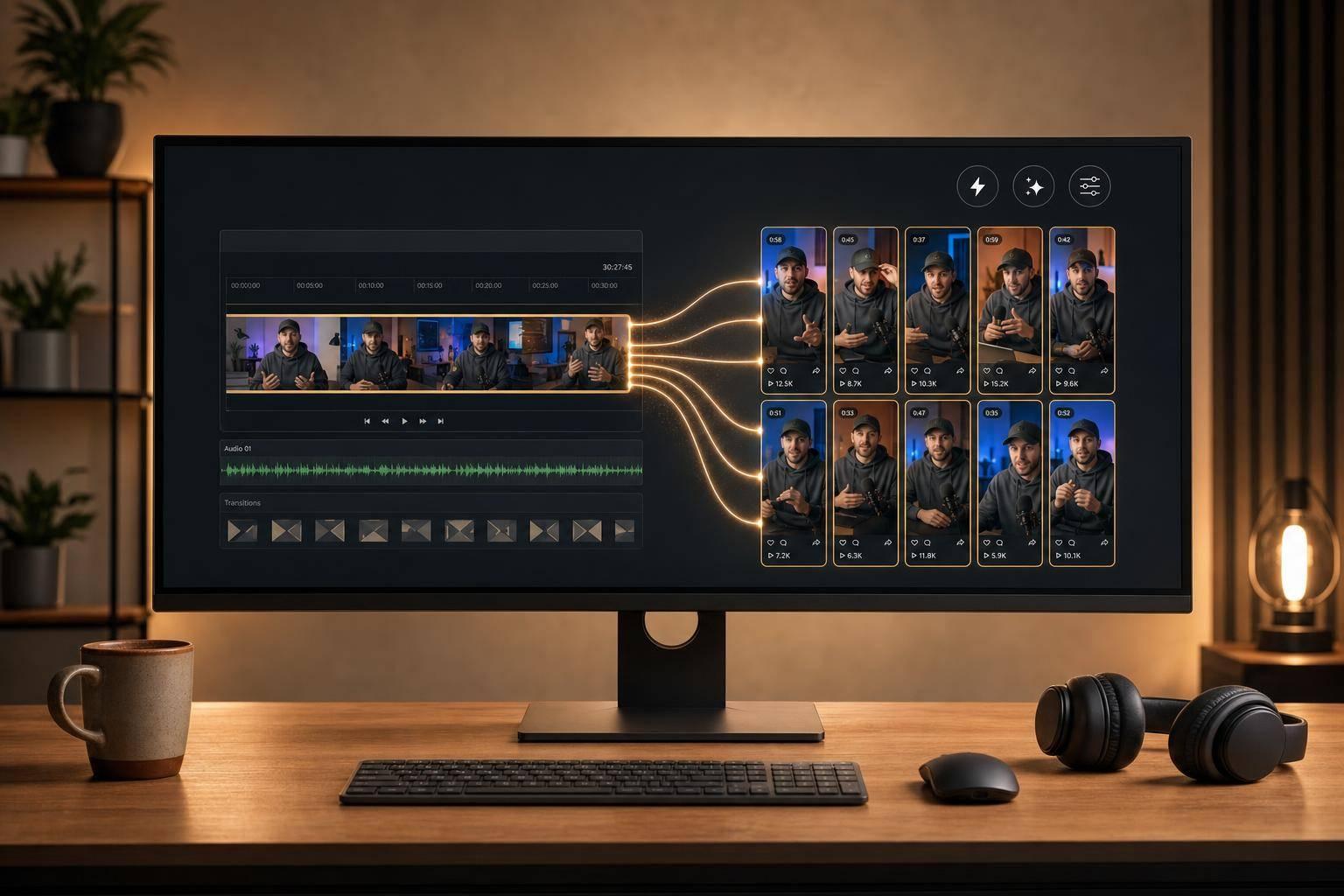
The AI Video Tools Content Creators Use to Turn Long Videos Into 10 Viral Clips
If I want the short answer: start with Opus Clip for fast output, Klap for cleaner-looking clips, Vidyo.ai for brand-heavy layouts, and Descript for manual editing control.
A long video can often turn into 10 to 15 short clips in under 20 minutes instead of 3 to 5 hours by hand. But the best tool depends on one thing: do I want AI to pick clips for me, or do I want to pick them myself?
Here’s the simple breakdown:
- Opus Clip: best if I want lots of clips with less manual work
- Vidyo.ai: best if I care a lot about layouts, captions, and brand styling
- Klap: best if I want polished clips and 4K export options
- Descript: best if I want transcript-based editing and tighter control
A few numbers stand out right away:
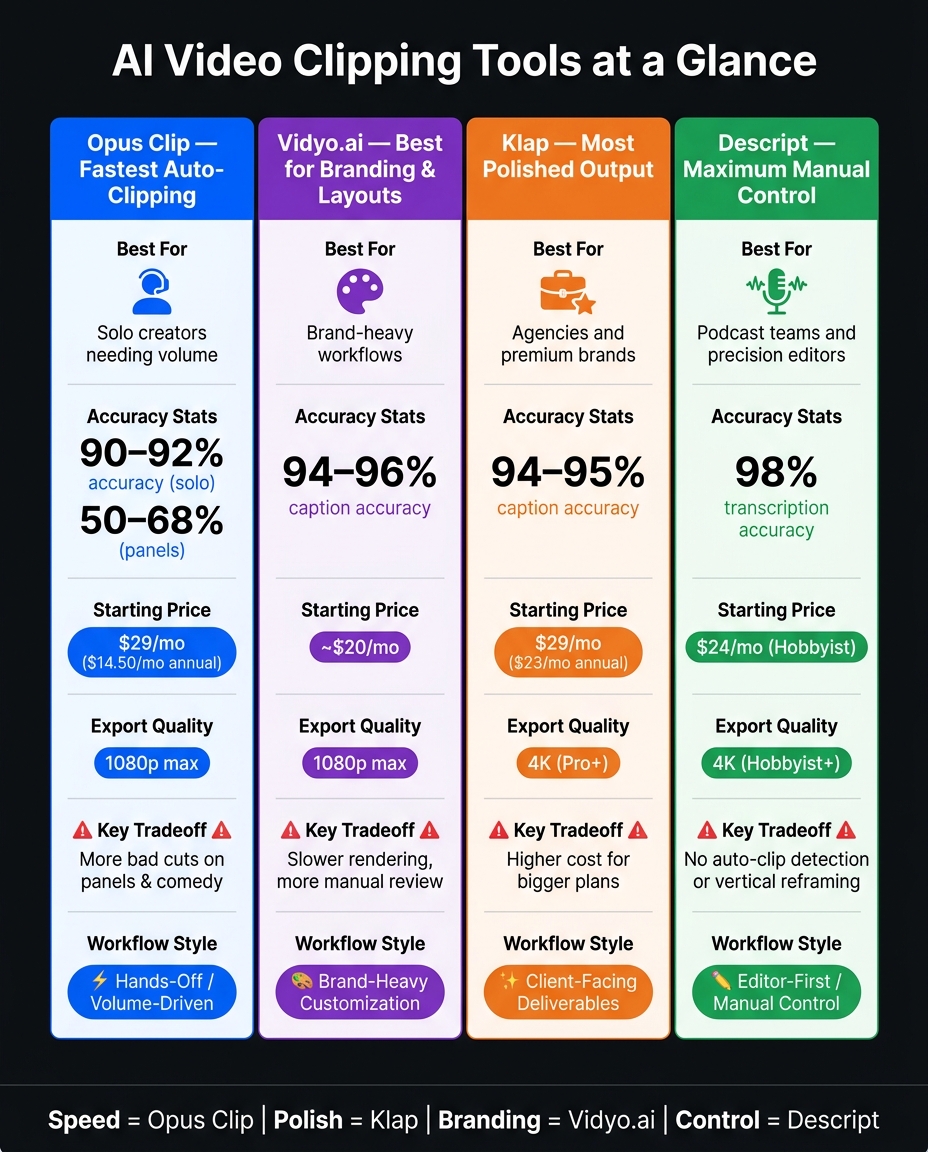
- Opus Clip works best on solo talking-head videos, with about 90%–92% clip accuracy
- Descript has the top transcript accuracy at about 98% for clear audio
- Vidyo.ai and Klap sit around 94%–96% caption accuracy on clean English audio
- Multi-speaker panels often need more cleanup no matter which tool I use
AI Video Clipping Tools Compared: Opus Clip vs Vidyo.ai vs Klap vs Descript
I Tested Every Popular AI Clipper So You Don't Have To
sbb-itb-212c9ea
Quick Comparison
| Tool | Best For | Main Tradeoff | Starting Price |
|---|---|---|---|
| Opus Clip | Fast auto-clipping | More bad cuts on panels and comedy | $29/month |
| Vidyo.ai | Branding and layout control | Slower rendering and more manual review | About $20/month |
| Klap | Polished clips and higher export quality | Higher cost for bigger plans | $29/month |
| Descript | Manual editing and transcript control | Not built for one-click clip mining | $24/month |
When evaluating AI video tools for your stack, If I’m choosing based on workflow, the rule is simple: speed = Opus Clip, polish = Klap, branding = Vidyo.ai, control = Descript.
1. Opus Clip
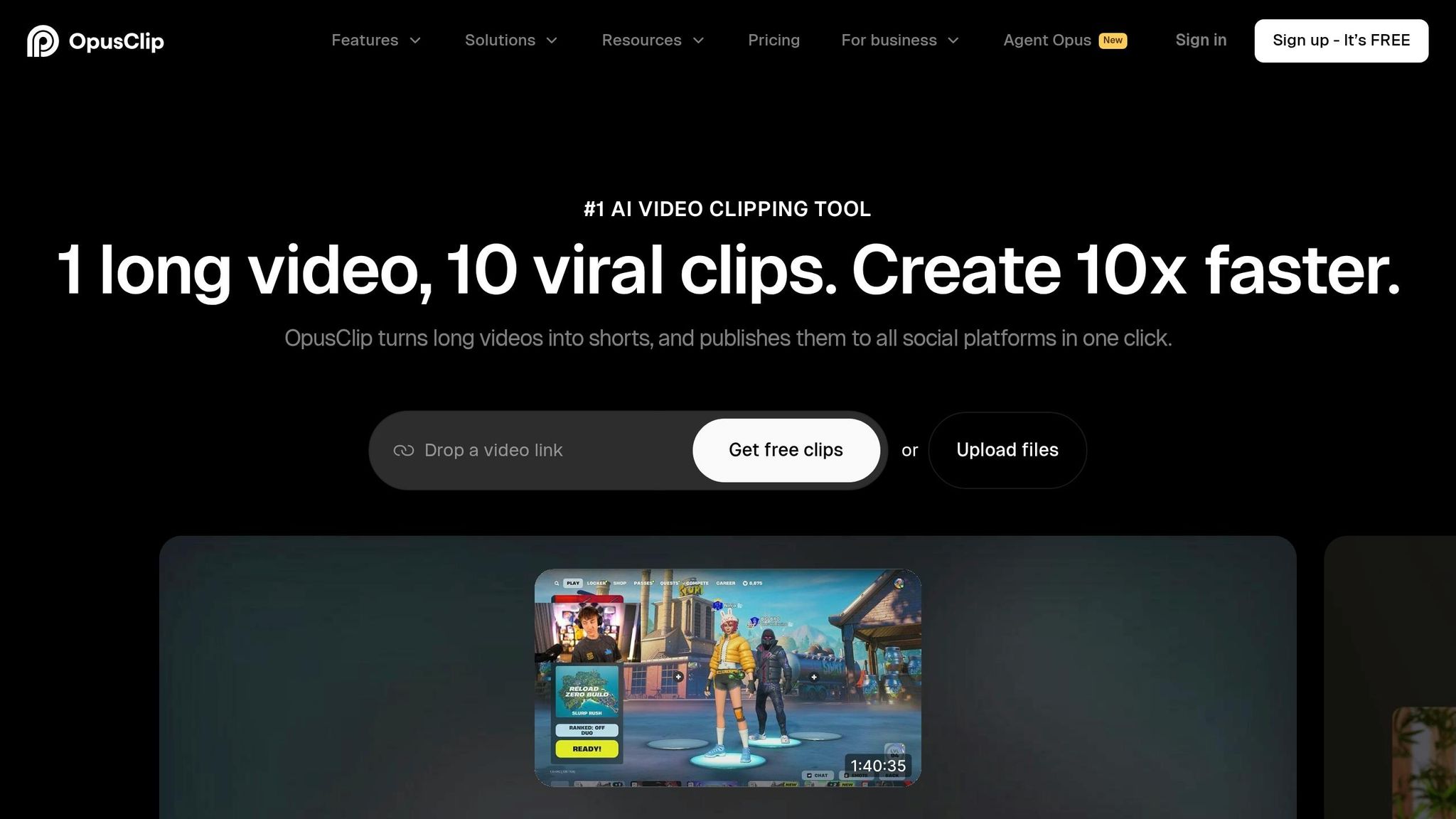
Opus Clip is the fastest pick when you want the tool to handle most of the clip picking for you. It’s built to turn one long video into a ranked batch of short clips in minutes, and it has generated more than 172 million clips as of 2026.
Highlight Detection
The tool gives each clip a Virality Score from 0 to 100. Clips that score above 75 average about 2.3x more views than clips below 50. That sounds great, but the results depend a lot on the type of video you upload.
It performs best on solo talking-head videos, where accuracy lands around 90–92%. That drops to 50–68% for multi-speaker panels and just 28–30% for comedy. In plain English: you should expect to throw out around 20–40% of the clips because some will cut off sentences or strip away context.
Captioning and Reframing
Auto-captions hit 94–97% accuracy on clear English audio. Add background music or people talking over each other, and that falls to about 88%.
Captions animate word by word, and the tool also adds emojis and highlights keywords on its own. That can save time, but don’t post blindly. Check brand names and technical terms by hand before anything goes live.
The ReframeAnything engine converts 16:9 video into 9:16 on its own. If the crop looks off, you can step in and adjust it yourself.
Speaker Handling
Active speaker detection works well for two-person interviews, keeping the person who’s talking centered in the vertical frame.
Things get slower with roundtables or panel recordings. Those clips usually need more cleanup, with review time running up to 5 to 8 minutes per clip, compared with about 2 minutes for solo content.
Export and Publishing
The Pro plan costs $29/month, or $14.50/month billed annually. It adds direct publishing to TikTok, YouTube Shorts, Instagram Reels, and LinkedIn. You also get Brand Kits for custom fonts and logo placement, XML export for Premiere Pro or DaVinci Resolve, and automatic B-roll insertion.
One detail matters here: credits are based on source length, not clip count. So if your upload has dead air, trim it before you send it in. The Starter plan locks the clip editor, which makes Pro the more practical place to start if you publish often.
Creators who want more manual control over clip selection and editing need a different workflow, often involving other AI video editing tools for more granular adjustments.
2. Vidyo.ai
While Opus Clip leans harder on automation, Vidyo.ai (now Quso.ai) gives creators more say over branding and layout. That makes it a strong choice for podcasts and interviews that need the same visual style across every clip.
Highlight Detection
Vidyo.ai uses chapter detection and NLP to spot moments that may work well as clips. The highlight detection does a decent job, but it isn't fully dependable. At times, it cuts by time blocks instead of complete thoughts, which means a clip can stop in the middle of a sentence.
It also works well for screen-recorded tutorials and event recaps.
Captioning and Reframing
That extra control shows up in editing and visual formatting too. With clear English audio, transcription accuracy is around 94–96%. Where Vidyo.ai stands out most is customization: you get split-screen templates, custom backgrounds, progress bars, and saved brand kits with set fonts, colors, and logos. Its caption placement keeps text inside platform-safe zones, so captions are less likely to get covered by TikTok, Reels, or Shorts UI elements.
Speaker Handling
Vidyo.ai can automatically crop to follow the active speaker, and it works well for remote interviews and podcast setups. If you're editing multi-speaker panels, though, you'll probably need to step in and trim things by hand.
Export and Publishing
Processing is slower than with some other tools. A 30-minute video takes roughly 7 minutes to render. It supports batch processing and comes with a built-in social calendar. Export quality tops out at 1080p.
Pricing starts at about $20/month for Starter, which includes 75 upload minutes, and about $40/month for Pro, which includes 300 upload minutes. There’s also a free tier with 75 minutes per month, though exports come with watermarks. One catch: the interface can feel crowded at first because there are so many layout and branding controls.
If keeping your brand look consistent matters more than hands-off clip picking, Vidyo.ai is a solid pick - even if it asks for a bit more hands-on work.
3. Klap
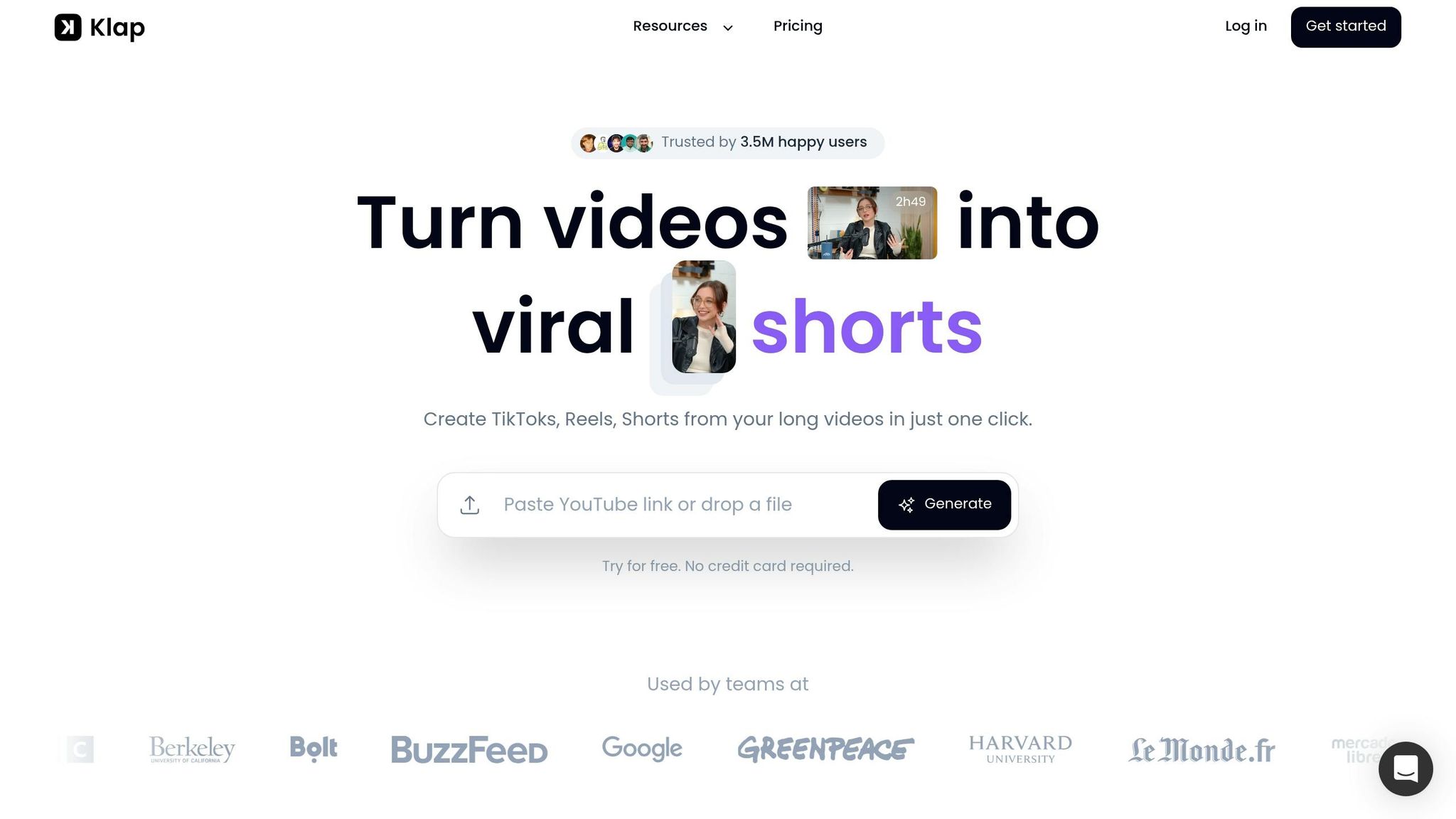
If you want clips that look more polished and need less cleanup by hand, Klap is worth a close look. It leans more toward polished output than sheer clip volume.
Highlight Detection
Klap uses AI topic detection and face detection to spot hooks, punchlines, and emotional high points. It tends to do best with talking-head content like podcasts and interviews. More abstract footage or very visual edits can be tougher for it.
Each clip gets a Virality Score from 0 to 100 based on hook strength, pacing, and topic fit. You can also steer the tool with plain-English prompts like "find the funniest moments" or "extract all product mentions." Expect about five clip candidates per source minute.
Captioning and Reframing
Klap supports auto-generated captions in 52 languages. You can adjust font, size, color, position, and keyword highlighting. In independent testing on clean audio, accuracy came in at around 94%–95%. The animated, word-by-word captions look polished without much manual work.
Reframe 2 is Klap's auto-cropping engine. It can crop interviews, screencasts, gameplay, and panel discussions. It works best with solo videos and two-person recordings. Four-speaker panels usually need some cleanup after the fact. It also supports multi-layout options for 3- and 4-person podcast layouts.
Speaker Handling
Reframe 2 tracks the active speaker and shifts layouts when a new person starts talking.
Export and Publishing
Processing is fast. A 52-minute video takes about 14 minutes to render. Klap supports 9:16, 1:1, and 16:9 formats, and 4K exports are available on Pro and higher plans. It also includes direct publishing to TikTok, Instagram Reels, YouTube Shorts, and LinkedIn, plus a content calendar.
| Plan | Price | Uploads/Month | Max Length | Export Quality |
|---|---|---|---|---|
| Standard | $29/mo ($23/mo annual) | 10 videos | 45 min | 1080p |
| Pro | $79/mo ($63/mo annual) | 30 videos | 2 hours | 4K |
| Pro+ | $189/mo ($151/mo annual) | 100 videos | 3 hours | 4K |
The free trial covers one video, which makes it a bit hard to test across different content types.
If you need more hands-on editing control after the clips are generated, the next section goes into that workflow.
4. Descript
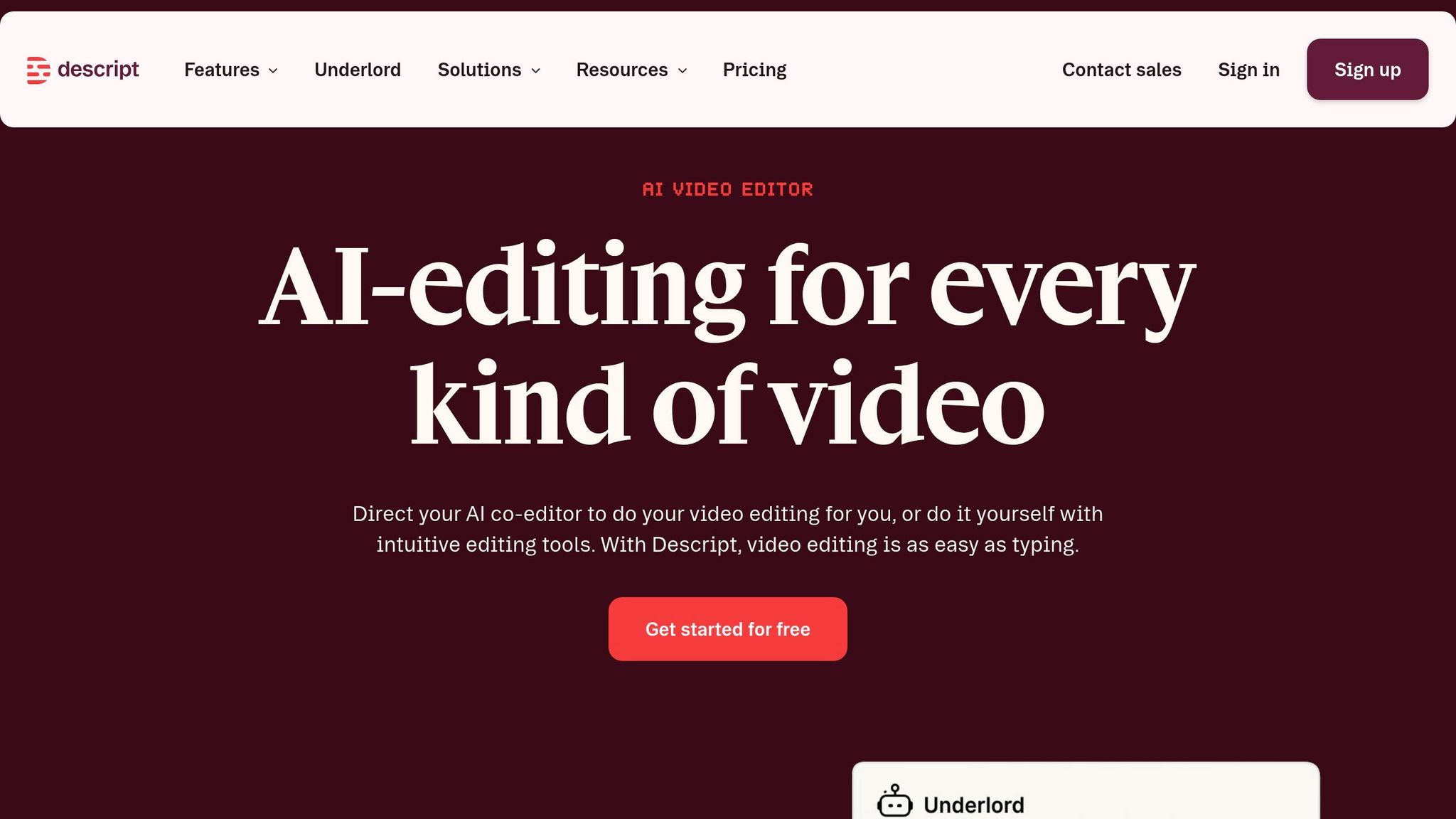
For creators who want hands-on control instead of automated clip mining, Descript moves the work into the editor itself. It's a transcript-first editor, not an auto-clip tool. That means it works best when you want to pick clips during the edit instead of handing that job off to AI. If clip choice matters more than pumping out a high number of clips, this setup makes sense. It's manual, but exact.
Highlight Detection
Descript's clip-finding process is manual on purpose. You move through the auto-generated transcript and mark the parts you want to export as clips. The AI Find Good Clips feature can help, but it's less dependable than tools built around automated scoring.
In one test, a creator spent 25 minutes reviewing a 45-minute interview transcript to pick 8 clips. That kind of control helps more during editing than in pure auto-clipping.
Captioning and Reframing
Descript's transcription accuracy is rated at about 98% for clear audio, which makes it the most accurate among major clipping tools. Captions come straight from the transcript, and you can adjust fonts and colors.
What it doesn't do is auto-crop into 9:16 or follow the active speaker on its own. So if you're hoping for automatic vertical reframing, this isn't the tool for that.
Speaker Handling
This is where Descript stands out in a very practical way. Filler Word Removal deletes every "um" and "ah" in one click. Eye Contact Correction makes speakers look directly at the camera. And Overdub lets you fix a misspoken word by typing the correction instead of recording the line again.
What it still won't do is shift the visual frame between speakers by itself in a vertical layout.
Export and Publishing
Descript doesn't include built-in social media publishing or scheduling. You export finished clips as video files or as XML for Premiere Pro or DaVinci Resolve.
The big export-side feature is Studio Sound, which is widely seen as the industry leader for AI noise reduction.
| Plan | Price | Transcription | Export Quality |
|---|---|---|---|
| Free | $0/mo | 1 hr/month | 720p with watermark |
| Hobbyist | $24/mo | 10 hrs/month | 4K, no watermark |
| Pro | $33/mo | 24 hrs/month | 4K + Studio Sound, filler removal |
| Business | $55/mo per seat | Team features | 4K + shared drives |
Pricing and transcription limits are based on Descript's listed plans.
"Descript is not a 'upload and get clips' tool. It is an editing environment where AI assists but does not replace your judgment." - Udit Goenka, Founder @ Autoposting.ai
That tradeoff matters most for creators who care more about control than speed. Descript fits precision editing better than bulk clip generation.
Pros and Cons by Creator Workflow
No tool wins every workflow. Once you compare clip detection, captions, reframing, and export, the choice gets simpler: pick the tool that fits how you work.
Here’s the fastest way to match each one to a creator setup.
| Tool | Best Use Case | Main Advantages | Main Limitations | Workflow Fit |
|---|---|---|---|---|
| Opus Clip | Solo creators needing volume | Fastest auto-clipping for solo content | Low upload limits on lower tiers; 1080p cap; clunky editor | Hands-off, volume-driven |
| Vidyo.ai | Brand-heavy workflows | Best for branded layouts | Slower processing; low upload limits on starter plans | Brand-heavy customization |
| Klap | Agencies and premium brands | Best polish and export quality | Lower clip volume; spoken-word content only | Client-facing deliverables |
| Descript | Podcast teams and precision editors | Best for manual editing and cleanup | No auto-clip detection; steep learning curve; export-only publishing | Editor-first, manual control |
One thing is true across all four: you should still expect manual review. AI does most of the heavy lifting, but it doesn’t finish the job on its own.
The main tradeoffs are pretty simple:
- Speed if you need more clips with less hands-on work
- Brand control if layout and visual style matter most
- Manual precision if you want tight editing and cleanup
Use those three tradeoffs to match the tool to your biggest bottleneck.
Conclusion
The right pick comes down to one thing: do you want the AI to find the best moments for you, or do you already know what you want to clip? That’s the line between automation-first tools and editor-first tools.
If your goal is the fastest route from a 60-minute video to about 10 short clips, Opus Clip is the best place to start. It finds strong moments fast and gives you high-volume output with less manual checking.
If speed isn’t your top concern, Klap is the better fit when polish and 4K exports matter most.
If you want more hands-on control, Descript works in a different way. It makes more sense for creators who edit first and clip second.
The choice is pretty simple: go with the tool that matches your main bottleneck - speed, polish, or control.
FAQs
Which tool is best for beginners?
For beginners, Opus Clip is the best pick if you want the fastest, simplest way to turn long-form videos into social-ready clips.
The interface is easy to use. You can paste a YouTube link or upload a file, then get scored, captioned clips in minutes. The AI also handles viral hook detection, reframing, and caption styling, so the process feels much more hands-off.
How much manual editing will I still need?
AI tools can save 3 to 5 hours of manual work for each hour-long video by cutting down the time spent reviewing footage.
That said, you’ll still need some light cleanup in most cases. This often means fixing caption typos, trimming clip start or end points, or adjusting speaker framing so it looks right.
If you want custom branding, complex transitions, or tight multi-track edits, you may still need external software.
What types of videos work best for AI clipping?
AI clipping tools tend to work best when a video has clear, steady audio and one main thing happening on screen. Talking-head videos, like solo podcasts or single-camera interviews, are a great fit. The reason is simple: the tool can spot natural starting and stopping points with less guesswork.
They also work well for formats like:
- Multi-person interviews
- Webinars
- Workshops
- Product demos
More complex footage, like panel discussions or live streams, usually needs a closer human review.