Productivity
15 Hidden AI Features Inside Apps You Already Use Every Day (No Tech Skills Required)
15 built-in AI tools in email, photos, calendar, and social apps that save time and simplify daily tasks—no tech skills needed.

15 Hidden AI Features Inside Apps You Already Use Every Day (No Tech Skills Required)
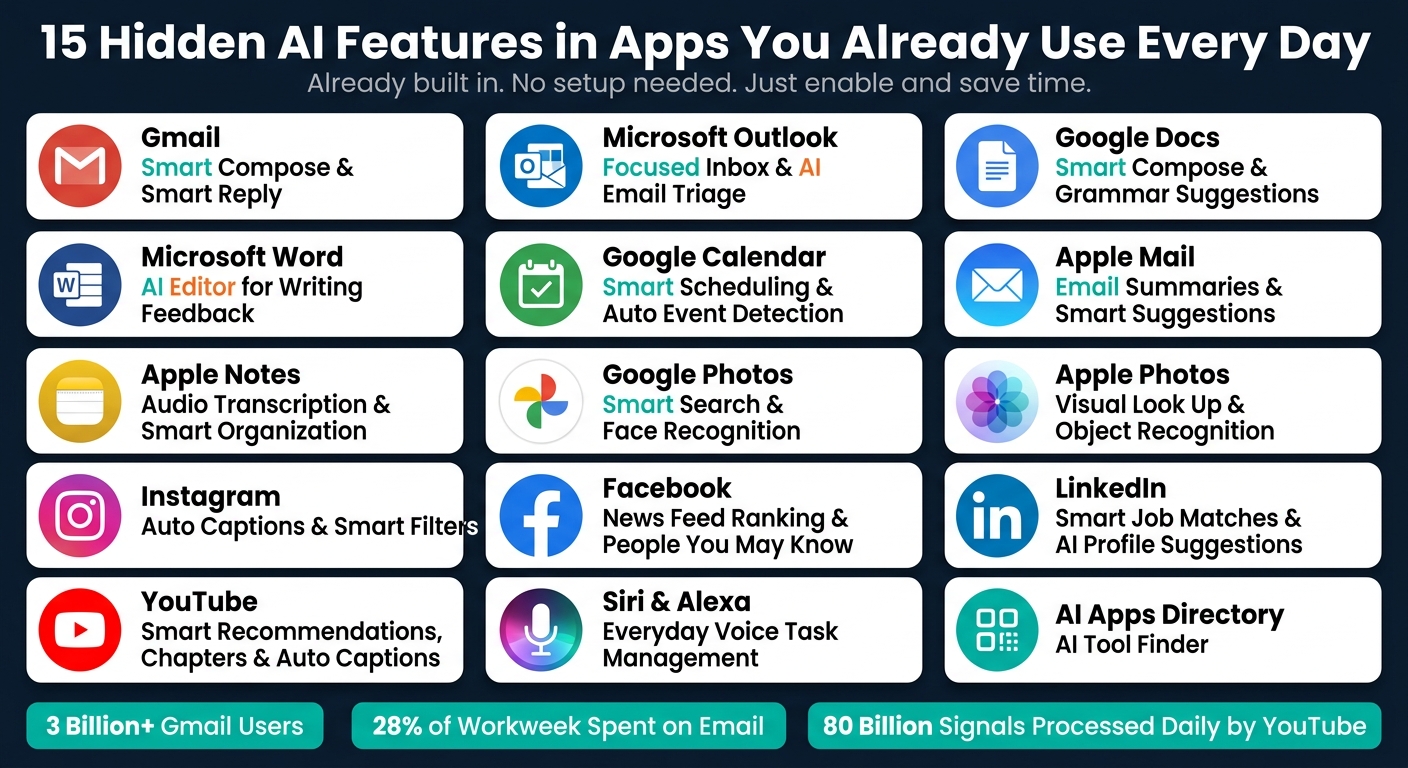
Did you know most of the apps you use daily have hidden AI features designed to save you time and effort? From email tools that summarize threads to photo apps that organize and search your images, these features are built right in - no setup needed. Here’s what you’ll find:
- Gmail: Auto-suggest replies and compose emails faster.
- Microsoft Outlook: Sort important emails automatically.
- Google Docs & Microsoft Word: Get grammar fixes and writing suggestions in real time.
- Google Calendar: Automatically add events from emails.
- Apple Notes & Photos: Transcribe audio, recognize objects, and sort notes or images.
- YouTube & Instagram: Auto-generate captions, chapters, and personalized content.
- LinkedIn & Facebook: Smarter job matches and feed recommendations.
- Siri & Alexa: Manage tasks with simple voice commands.
These tools are already in your apps, or you can explore other free AI tools to further simplify your day. Just enable them and simplify your day.
15 Hidden AI Features in Apps You Already Use Every Day
These HIDDEN AI Features in Google Apps are a MUST KNOW!
If you're new to these technologies, check out our guide on essential AI tools for beginners to see how they can simplify your daily routine.
sbb-itb-212c9ea
How AI Shows Up in Apps You Already Use
AI isn't just a standalone tool anymore - it’s quietly woven into the apps you use every day. As tech writer Sandeepnanu explains:
"AI is no longer a destination. It's becoming a layer that sits on top of things you already use, activated by a small button you didn't see last month." - sandeepnanu, Author
This integration works behind the scenes, enhancing your experience in subtle but impactful ways. Think about the smart suggestions that predict your next move, the automatic organization that tidies up your inbox or photo library, or the personalized content that learns your preferences and highlights what’s most relevant to you. These features not only tackle information overload but also anticipate what you need before you even ask.
Take email summarization, for example. Instead of scrolling through a long thread, AI can condense the entire conversation into a quick, digestible summary. Blake Barnes, VP of Product at Gmail, describes this process:
"AI Overviews turn information into answers without the digging. When you open an email with dozens of replies, Gmail synthesizes the entire conversation into a concise summary of key points."
Another standout feature is proactive nudging. AI identifies key details and suggests actions on the spot. For instance, Samsung's Now Nudge can spot a date in a text message and instantly offer to add it to your calendar - no copying and pasting required.
What’s even better? These features are ready to go the moment you use the app. They’re designed with U.S. standards in mind, like month-first date formats (e.g., 05/29/2026), dollar signs ($), and Fahrenheit temperatures, making them feel familiar and easy to use.
1. Gmail Smart Compose and Smart Reply
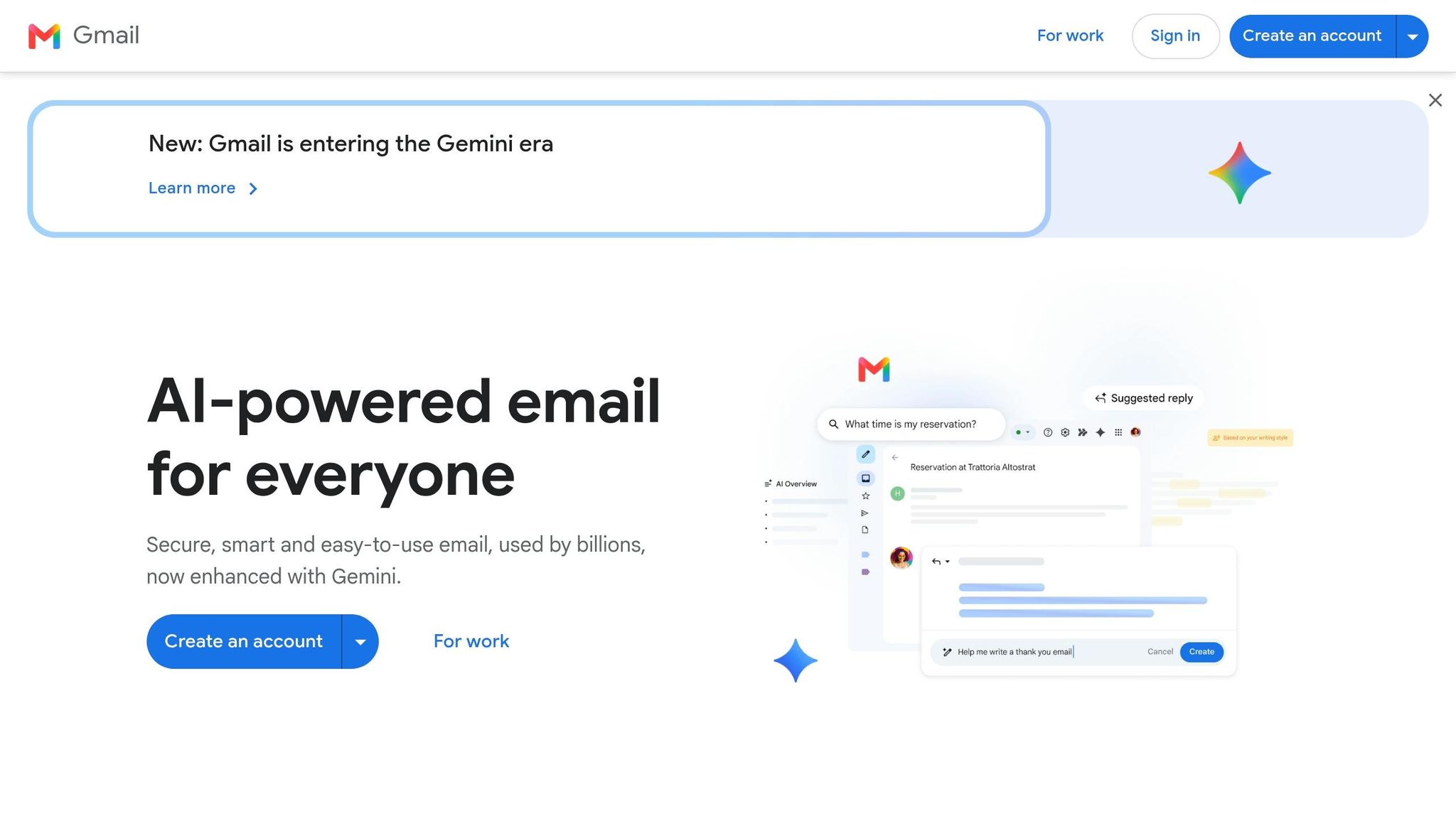
With over 3 billion users worldwide, Gmail has become a go-to tool for simplifying email communication. Two standout features, Smart Compose and Smart Reply, are designed to help users save time and effort - and they’re enabled by default.
Smart Compose predicts your next words as you type, displaying suggestions in light gray text. If the suggestion works for you, simply press Tab on your keyboard or swipe right on your phone to accept it. It doesn’t require any setup and adapts to your writing style over time, making its suggestions feel tailored to you.
Smart Reply, on the other hand, takes a different approach. When you open an email, Gmail analyzes the message and offers up to three quick-response options, such as "Sounds good to me" or "Thanks for the update." All you need to do is tap one, tweak it if necessary, and hit send.
In 2026, Gmail introduced Gemini-powered Suggested Replies, an upgrade to Smart Reply. These responses are more detailed and context-aware, aligning with your tone based on previous email interactions. Users have already noted its impact:
"Gemini in Gmail really lets our staff save time drafting emails. It gives you the basics so then you make it your own." - Jeff Johnson, Executive Director, Can Do Canines
While the basic versions of Smart Compose and Smart Reply remain free, accessing the advanced Gemini-powered features requires a Google AI Pro or Ultra subscription, or a Google Workspace Business/Enterprise plan. These tools demonstrate how AI can simplify everyday tasks, seamlessly integrating into your workflow without additional setup.
2. Microsoft Outlook Focused Inbox and AI Email Triage

If your inbox feels like a never-ending flood of newsletters and alerts, Outlook's Focused Inbox might be your lifesaver. It automatically separates your emails into two tabs: Focused for important messages and Other for bulk mail and marketing emails, similar to how other AI automation tools streamline your workflow. The best part? It does this with zero setup required.
The magic lies in its ability to learn. By observing how you interact with your emails, the AI gets better at predicting which messages actually deserve your attention. As Microsoft Support explains, "The more you use Focused Inbox, the smarter it gets about how it organizes your messages."
But it’s not just about automation - you can fine-tune it too. Want more control? Simply right-click an email and choose "Always move to Focused" or "Always move to Other" to teach the system your preferences for the future.
For those who need an even sharper tool, Microsoft has rolled out Prioritize My Inbox, a Copilot-powered upgrade. This feature uses advanced language models to assign priority levels - High, Normal, or Low - and even explains why a particular email was flagged as important. Paul Tischhauser, Product Manager at Microsoft Outlook, summed it up perfectly:
"We built this feature primarily for people who feel like they get too much mail, much like AI tools for small businesses that aim to reduce digital clutter, and it takes them a long time to sort through their inboxes.... Not only does this surface what's important at the top of your inbox, it explains why it's important."
3. Google Docs Smart Compose and Grammar Suggestions
Google Docs takes inspiration from AI features in email and calendar tools to improve your writing experience. Its AI assistant, Smart Compose, predicts text as you type, allowing you to accept suggestions by simply pressing the Tab key. This feature speeds up your workflow by reducing the time spent typing repetitive phrases or sentences.
The grammar tools in Google Docs are just as handy, functioning similarly to ProWritingAid. Spelling errors are flagged with a red underline, while grammar issues get a blue underline, offering real-time proofreading without requiring any extra steps.
What makes it more than just a basic spell-checker is its ability to refine tone and style. By highlighting a paragraph, you can access the floating "Refine" bar to tweak your text - whether you want to shorten it, expand on it, or adjust its tone. This seamless integration of AI reflects how everyday tools are quietly evolving to make tasks simpler. For instance, professionals at WebFX rely on these features regularly:
"Our teams use the 'Help me write' feature in Docs to generate ideas and develop outlines. The 'Shorten' feature within Docs… helps with our everyday client-facing messaging." - Catelin Carey, Senior Vice President, WebFX
To activate Smart Compose, navigate to Tools > Preferences and check the "Show Smart Compose suggestions" box. Once enabled, your preference will sync across all your devices. While basic Smart Compose and grammar suggestions are available to all Google Docs users, advanced text refinement tools require a qualifying Google Workspace or Google AI plan.
These features illustrate how AI is making everyday tools smarter and more user-friendly.
4. Microsoft Word Editor for Writing Feedback

Microsoft Word comes equipped with a built-in AI tool called the Editor, located on the Home tab in the ribbon. This tool goes beyond basic spellcheck, offering feedback in two categories: Corrections (spelling and grammar) and Refinements (clarity, conciseness, tone, and vocabulary).
The Editor flags issues as you type, using color-coded underlines - red for spelling mistakes, blue for grammar suggestions, and purple for style improvements. These alerts appear instantly, so there’s no need to open a separate window.
You can apply suggestions with ease. Right-click on any underlined text to see the recommended fix and apply it, or open the Editor pane for a more detailed breakdown by category. Whether you’re aiming to tighten up your writing or adjust the tone for a formal audience, this tool helps you fine-tune your work.
"The ideal AI spelling and grammar tools merely offer suggestions, but they don't rewrite for you. You get the flexibility to decide how your own writing sounds." - Microsoft 365 Life Hacks
While basic spelling and grammar checks are free, advanced features like tone and style refinements require a Microsoft 365 subscription. For a more tailored experience, you can adjust the Editor’s settings to align with your intended tone. This tool is one of those everyday features that quietly simplifies your workflow, saving you time and effort.
5. Google Calendar Smart Scheduling and Automatic Event Detection
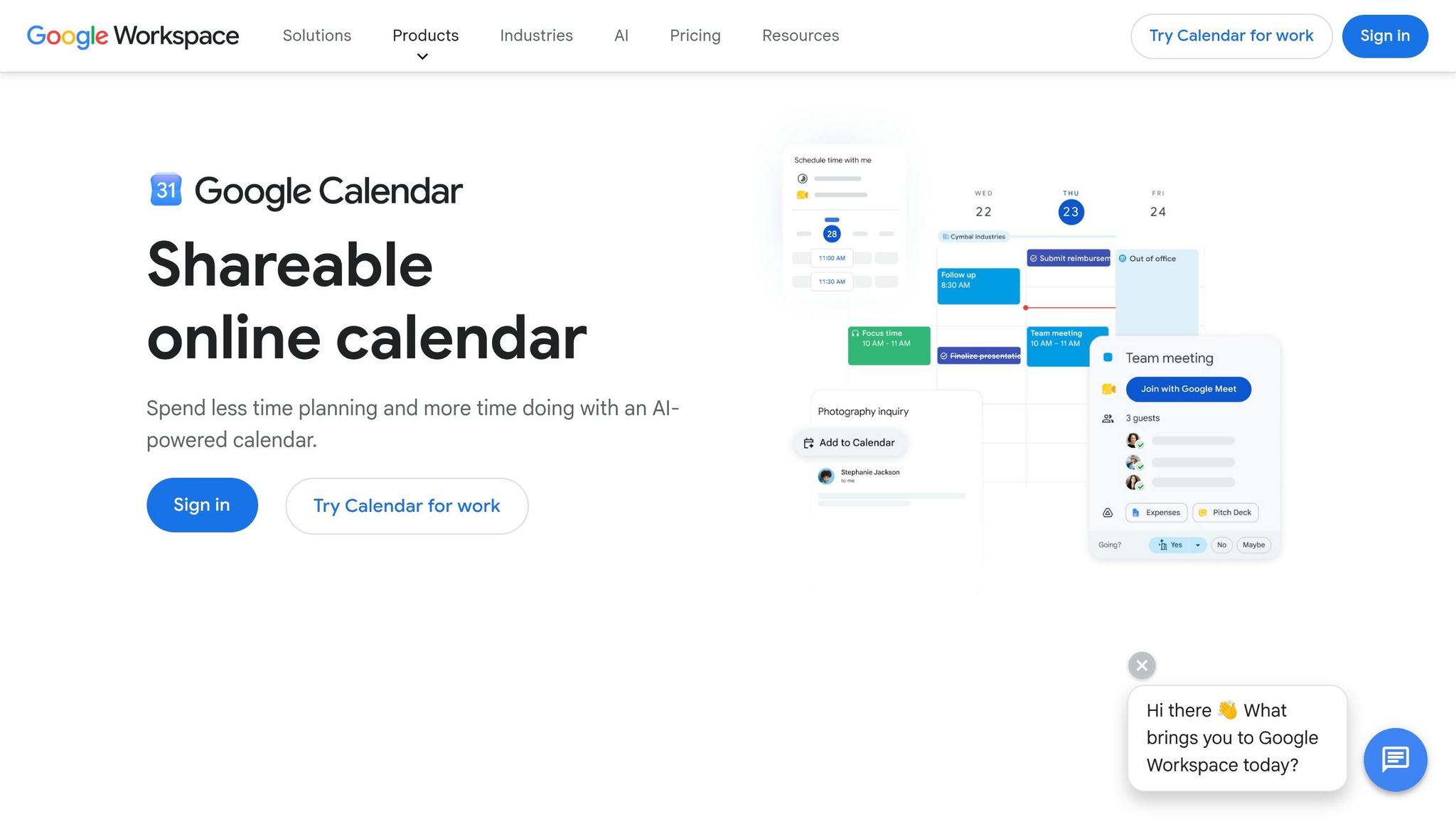
Google Calendar's AI takes the hassle out of manually adding events by scanning your Gmail for confirmation emails - like those for flights, hotels, restaurant reservations, or concert tickets - and automatically adding them to your calendar. It even includes details like confirmation numbers and a direct link to the email for quick reference.
A newer feature, powered by Gemini, goes one step further. It can spot event details in everyday emails - things like dentist appointments or casual lunch plans - and provides an "Add to Calendar" button. Clicking this brings up a sidebar with prefilled event details that you can review and save in seconds, cutting down the time it takes to add events manually. Beyond travel and personal events, AI also simplifies meeting coordination. For those with complex schedules, tools like Clockwise can further optimize your day.
When you're emailing back and forth to find a meeting time, the "Help me schedule" feature can step in. It appears as a button in the email composer when Gmail detects scheduling discussions. Gemini reads the email thread, checks your calendar, and suggests time slots. It even uses color coding - green for available times and amber for potential conflicts - to make the process smoother.
"This is such a sigh of relief... you don't have to go do the logistical gymnastics of going back and forth between the previous emails and checking your calendar entries." - Nadeem Sarwar, Managing Editor, Digital Trends
Basic event detection, like adding flights and hotel bookings, is free for all Gmail users. However, the Gemini-powered features, such as the "Add to Calendar" button and "Help me schedule", require either a Google Workspace plan or a Google One AI Premium subscription, priced at $19.99 per month. To enable these features, head to Google Calendar Settings > General > Google Workspace smart features and ensure smart features are turned on. These tools showcase how AI can make everyday tasks easier, seamlessly integrating into the apps you already use.
6. Apple Mail Email Summaries and Smart Suggestions
Ever faced the dread of opening your inbox only to be greeted by a 40-message thread? Apple Mail has a solution for that. Thanks to Apple Intelligence, the app can condense an entire thread into a bite-sized summary in just seconds. No endless scrolling required - simply open the email, scroll to the top, and tap Summarize to get the key points.
What’s even better? These summaries aren’t confined to the email itself. They appear right in your inbox - before you even open the message. Instead of showing the usual first two lines, Apple Mail displays an AI-generated preview that cuts straight to the email's purpose. As Mahmoud Itani from Android Authority explains:
"We've gone from 'Hi, I hope this email finds you well' to 'The sender is inquiring about your availability tomorrow' in the notification center."
This feature not only saves time but also sets the stage for more interactive tools.
Take Smart Reply, for instance. If an email asks something like, "Does 5 PM or 6 PM work better for you?" Apple Mail offers tailored response options right above your keyboard. Select one, and the app drafts a complete, context-aware reply for you. Want to tweak it? Use the built-in Writing Tools to adjust the tone - whether you’re aiming for "Professional" or "Friendly" - or use writing tools to refine your message before sending it off.
Apple Mail also ensures that urgent emails don’t get lost in the shuffle. The AI identifies time-sensitive messages, such as boarding passes or same-day meeting invites, and moves them to a Priority section at the top of your inbox.
These features are available for free on devices with compatible hardware, including the iPhone 15 Pro or later, or any iPad/Mac equipped with an M1 chip or newer, running iOS 18.1, iPadOS 18.1, or macOS Sequoia 15.1+. Prefer the traditional email preview? You can disable the AI summaries by heading to Settings > Apps > Mail and toggling off Summarize Message Previews.
7. Apple Notes Audio Transcription and Smart Organization
Apple Notes takes the stress out of trying to keep up with meeting discussions. Instead of typing furiously, you can now focus on the conversation while the app handles the heavy lifting. As Ryan Christoffel, Editor at 9to5Mac, explains:
"The days of typing furiously to capture all the notes of a meeting are over." While Apple Notes is great for personal use, teams often use tools like Fireflies to record and analyze professional meetings.
Here's how it works: tap the paperclip icon, choose Record Audio, and let the app do the rest. It transcribes your words in real-time, displaying the text as you speak. The transcription is saved right alongside your photos, checklists, or sketches, keeping everything in one place. If you're using a device powered by Apple Intelligence - like the iPhone 15 Pro, iPhone 16 series, or any iPad/Mac with an M1 chip or newer - you'll also get an automatic summary of the transcript. This summary pulls out key points and action items, saving you from combing through the entire transcript later.
Finding what you need is a breeze. Transcripts are fully searchable, so you can tap a keyword to jump straight to that point in the audio playback. You can also rename transcripts for better organization - just long-press the title and change it to something like "Client Call - May 29."
Apple Notes also takes organization to the next level. Smart Folders automatically sort your notes based on tags like #Work or #Receipts. Plus, the app's AI-powered search can even recognize objects in images. That means typing "whiteboard" or "receipt" can bring up the right note, even if you didn’t include those words in your text.
To use the audio transcription feature, you'll need an iPhone 12 or later and an M1 (or newer) Mac. The feature supports 10 languages, including English, Spanish, and French.
8. Google Photos Smart Search, Face Recognition, and Memories
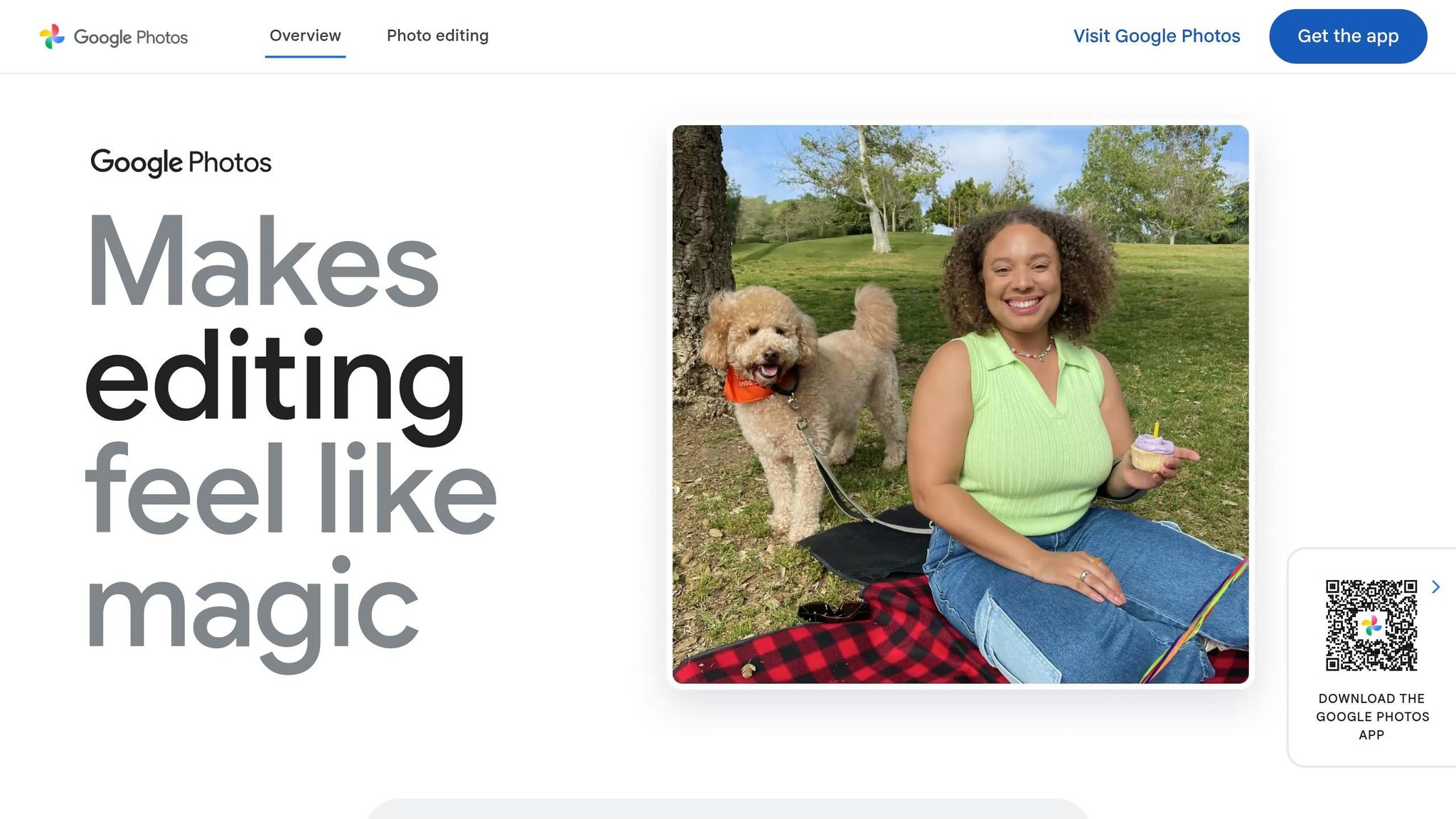
Feeling buried under countless photos in your camera roll? Google Photos’ AI-driven search makes finding that perfect shot a breeze. Just type in a descriptive phrase like "Alice and me laughing" or "drinking tea by the fireplace," and it’ll pull up matching images. The app’s ability to understand natural language means you don’t have to remember exact dates or filenames. It can also search by location, objects, or even text captured within a photo - like words on a street sign or a restaurant menu. With over 6 billion photos uploaded to Google Photos daily, this AI was built to handle massive amounts of data effortlessly.
Google Photos takes organization a step further with its facial recognition feature. To enable it, navigate to Photos settings > Preferences > Group similar faces. Once activated, the AI detects and clusters similar faces, including pets. You can tag a group as "me" to quickly find photos of yourself - like "me at the beach." If you notice duplicate face groups, simply label them the same, and the system will merge them automatically.
Jeremy Selier, a Software Engineer at Google Photos, highlights the app's core philosophy:
"Google Photos was one of the first products we built with AI at the center, giving you the ability to search your photos and videos for people, pets, places and more."
The Memories feature is another standout. It curates past trips and celebrations, resurfacing moments you may have forgotten. Each month, over half a billion people scroll through the Memories carousel. And in May 2024, Google introduced Ask Photos - powered by Gemini. This tool lets you ask detailed questions like "What did we eat on our trip to New Orleans?" or "What themes have we had for Lena's birthday parties?" The AI dives into your library to find answers, making it easier than ever to relive special memories.
9. Apple Photos Visual Look Up and Object Recognition
Ever taken a picture of a flower and wondered what it was? With Visual Look Up in Apple Photos, you can discover its species instantly - no extra apps needed. This built-in AI feature identifies objects in your photos with just a few taps.
Here’s how it works: open a photo and tap the Info (i) button. If the app recognizes something, you'll see icons like stars, a 🌿, or a 🐾. Tap the icon and select "Look Up" to access details from Siri Knowledge or the web. On a Mac, you'll find a starred icon in the toolbar when viewing a photo.
Visual Look Up isn't just for flowers. It can identify dog breeds, bird species, trees, artwork, landmarks, and even food - complete with recipe ideas. If you snap a photo of a business, it might show you operating hours, menus, ratings, or even links for reservations. This feature works on still photos and even lets you pause videos to analyze a specific frame.
What makes it even better is its reach across Apple's ecosystem. You’re not limited to the Photos app - Visual Look Up works in Safari, Mail, and Notes too. Just long-press any image to access it. With iOS 18 and macOS Sequoia, the new Enhanced Visual Search even lets you identify landmarks by name, even if the photo lacks location data.
Apple has also prioritized privacy while making this feature smarter. Object recognition for plants and animals happens entirely on your device, and landmark searches use homomorphic encryption to compare your photo with Apple's database without exposing your image. This thoughtful balance of functionality and privacy ensures a seamless experience while keeping your data secure.
10. Instagram Auto Captions, Smart Filters, and Suggested Content
Instagram has packed its platform with some clever AI features that often go unnoticed. Among the most practical are auto captions, smart filters, and personalized content recommendations - and the best part? You don’t need any tech expertise to use them. Let’s take a closer look.
Auto Captions: Accessibility and Convenience
Instagram’s auto captions feature uses speech recognition to transcribe spoken words from Reels and videos into text overlays. This feature is enabled by default to make content more accessible, especially for the deaf and hard-of-hearing community. It’s also a lifesaver for the many users who watch videos with the sound off, whether they’re in public or at work. If you want to ensure captions are added manually, just head to Advanced settings before posting and toggle on "Enable closed captions." To get the most accurate transcription, face the camera directly and try to reduce background noise.
Instagram also offers an AI-powered dubbing feature called "Translate voices with Meta AI", which syncs your Reels into languages like Spanish, Hindi, and Portuguese. This tool is perfect for reaching a broader audience without additional effort.
"Meta AI is your 24/7 creative assistant built right into the Instagram app... to generate captions that boost visibility and help your content flourish." - Meta AI Learning Hub
Smart Filters: Easy Photo and Video Editing
For editing, Instagram’s AI Restyle tool - accessible via the paintbrush icon in Stories - makes transforming your photos and videos a breeze. All it takes is a simple text prompt. Want your image to look like a "watercolor painting" or a "film noir scene"? Just type it in, and the AI will analyze your media, including its background, to seamlessly apply the effect. If the result isn’t quite right, you can tweak individual settings, like lighting, without starting from scratch.
Suggested Content: Tailored Recommendations
Instagram’s recommendation system is more advanced than most users realize. In fact, over 20% of the content in your feed comes from accounts you don’t follow, all curated by AI. The system processes billions of posts in seconds, narrowing them down to those most relevant to you based on your recent activity.
Want more control over what you see? Use the "Not Interested" option on posts you’d rather avoid, or head to the Suggested Content Control Center in settings. There, you can snooze recommendations or filter out specific words and topics for a more personalized experience.
These AI-powered tools are a great example of how smart features can simplify your time on the app, making it more accessible, creative, and tailored to your preferences.
11. Facebook News Feed Ranking and People You May Know
Every time you log into Facebook, its AI works behind the scenes to sort through more than 1,000 potential posts to decide what shows up in your feed. It considers a wide range of factors, like who shared the post, the type of content (video, photo, or text), how many likes or comments it has, and how likely you are to interact with it. Each post gets a relevance score, and the ones with the highest scores land at the top of your feed.
Interestingly, over 20% of your feed includes posts recommended by AI from accounts you don’t follow. These suggestions are based on your activity and past interactions. As Meta CEO Mark Zuckerberg explained:
"More than 20 percent of content in a person's Facebook and Instagram feeds is now recommended by AI from people, groups, or accounts they don't follow." - Mark Zuckerberg, CEO, Meta
The same detailed analysis powers Facebook's "People You May Know" feature. This tool uses a combination of shared connections, mutual friends, common groups, location, workplace, and even uploaded contacts to predict potential connections. The more overlapping factors you have with someone, the more likely they are to appear in your recommendations.
If you want more control over what you see, Facebook lets you tweak the AI's decisions. For posts, you can click the three-dot menu and choose "Show more" or "Show less" to influence future rankings. You can also prioritize up to 30 friends or Pages in your Feed Preferences, ensuring their posts appear higher in your feed. Alternatively, the "Feeds" tab allows you to skip the algorithm entirely and view posts in reverse chronological order.
For "People You May Know", hitting "X" on suggestions you don’t want helps refine future recommendations. You can also adjust your privacy settings to limit how often your profile is suggested to others by setting friend requests to "Friends of friends".
12. LinkedIn Smart Job Matches and AI Profile Suggestions
LinkedIn has taken the hassle out of job searching by making the process smarter and more intuitive. You no longer need to rely on rigid keywords like "marketing manager." Instead, you can describe your goals in natural language - something like "I want to use my marketing skills to help the environment." LinkedIn's semantic search engine then finds roles that align with your intent, even uncovering opportunities you might not have considered before. This approach shifts the focus from simple keyword matching to understanding what you’re truly looking for, making job searches feel less like a guessing game.
The platform also offers a Job Match summary, accessible via a sparkle icon, which compares your profile to job requirements and highlights any missing skills. This feature is invaluable, especially when you consider that 73% of hiring managers report that fewer than half of the applications they receive meet the job criteria. Knowing exactly where your profile falls short can help you focus on building the right skills.
To save time, LinkedIn’s AI filters out roles that aren’t a good match. Every month, about 2 million applications are redirected toward better-fitting jobs, reducing the frustration of applying for positions that don’t align with your qualifications. As Rohan Rajiv, LinkedIn’s Product Lead for Job Search, explains:
"I want a lot of that drudgery to go away so we can spend more time connecting with humans, because that is going to be the path to opportunity." - Rohan Rajiv, Product Lead for Job Search, LinkedIn
For Premium subscribers, LinkedIn’s AI takes things a step further. It rates your fit for a role as High, Medium, or Low and identifies when you qualify as a "Top Applicant". Free users still benefit from match summaries, but Premium features offer more detailed insights. To improve your matches, keep your profile updated - especially your skills, headline, and location - since the AI relies on this data to generate recommendations.
13. YouTube Smart Recommendations, Chapters, and Auto Captions
YouTube processes an astonishing 80 billion signals daily - everything from your watch history and search activity to likes, dislikes, and channel subscriptions. On top of that, it indexes over 500 hours of new content every single minute to deliver recommendations tailored to your preferences. This personalized approach forms the backbone of several AI-powered tools on the platform.
One standout feature is YouTube's conversational "Ask" tool. Instead of typing keywords, you can use plain language to request videos. For example, you might say, "Find me videos to help me relax at night," and the tool will curate results just for you. Conveniently located below select videos, this tool allows you to explore related content without leaving the video player. Plus, you can fine-tune your feed by selecting "Not interested" or "Don't recommend channel" on videos that don’t align with your tastes.
Another game-changing feature is Auto Chapters. YouTube's AI scans audio and visual cues to identify natural breaks in the content, automatically adding clickable chapter markers to the progress bar. This makes it easy to jump straight to the part of the video that interests you most. Even better, these chapters are indexed by Google, which means videos can show up as "Key Moments" in search results.
Auto-generated captions are also a huge help, especially for viewers with hearing impairments. These captions, which boast an accuracy rate of 85–95% for clear English speech, don’t just make videos accessible - they also support other tools like Auto Chapters and the conversational Ask feature. The Ask tool itself is available in over 25 languages, extending its reach to a global audience.
"Video chapters add info and context to each portion of the video and let you easily rewatch different parts of the video." - YouTube Help
Here’s a handy tip: if you’re diving into a niche topic and don’t want it to influence your regular recommendations, you can temporarily disable your watch and search history in your account settings.
14. Siri and Alexa for Everyday Tasks
Voice assistants like Siri and Alexa have become an integral part of how we navigate daily life, offering hands-free convenience and simplifying routines. Despite being used on over 4 billion devices worldwide, many people only tap into a fraction of their capabilities. The beauty of these tools lies in their ability to understand plain, conversational language - no need to memorize commands or technical phrases. This natural interaction makes managing tasks through voice commands feel effortless.
"Siri accepts natural language, so speak as you would to a friend." - Clear Tech Guide
One of their most practical benefits is managing tasks without lifting a finger. Imagine setting a timer while you’re cooking, adding items like "milk and eggs" to your shopping list as you unpack groceries, or scheduling a lunch date by saying, "Schedule lunch with Daniel tomorrow at 1 PM." Siri can even log health data - like water intake, medications, or workouts - directly into the Health app, all through simple voice commands.
For smart home enthusiasts, these assistants go a step further. A command like "Alexa, good night" can lock your doors, dim the lights, and adjust connected devices. Location-based reminders add another layer of convenience. Instead of specifying a time, you can say, "Remind me to pick up my prescription when I leave home," and the reminder will activate as soon as you leave.
Siri has also expanded its capabilities with ChatGPT integration, enabling it to handle more complex inquiries. These advancements continue to make voice assistants indispensable for streamlining both simple and more advanced tasks.
15. AI Apps Directory for Finding New AI Tools
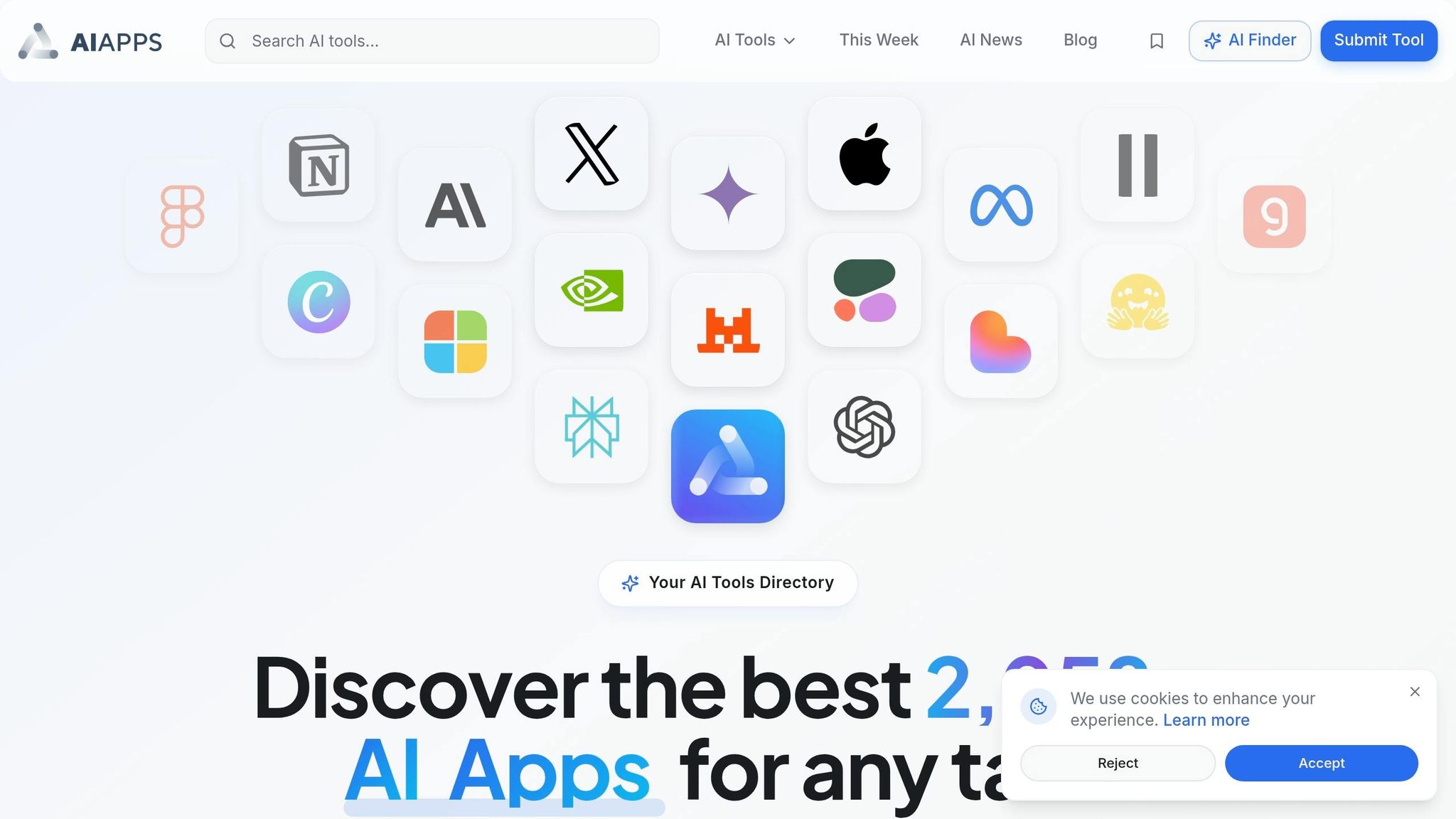
Sometimes, finding the perfect AI tool for a specific task can feel like searching for a needle in a haystack. That’s where AI Apps steps in - a directory that simplifies the process by organizing tools based on what you actually need, not just their technical specs.
AI Apps boasts a collection of 2,058+ AI tools, neatly categorized into 9 main groups and spanning 17 industries. Whether you’re looking for help with writing, design, productivity, AI video editing tools, or marketing, this directory makes it easy to find tools tailored to your workflow.
One standout feature is the AI Tool Finder, designed for users of all experience levels. Here’s how it works: you simply type in what you’re looking for in plain English, and the directory does the rest.
"Describe what you need in plain English. We'll match you with the best AI tools from our directory." - AIapps
For instance, entering something like "I need help with meeting notes" will instantly pull up relevant options.
The directory covers over 135 specific workflows, from planning trips with AI to assisting with academic projects. It also keeps things fresh with sections like "Just Landed", showcasing the latest tools, and "Most Popular", which ranks tools based on Google search traffic from the past three months. Best of all, browsing the AI Tool Finder is entirely free.
Conclusion
The 15 features highlighted here aren't futuristic gadgets - they're already woven into the fabric of tools like Gmail, Google Docs, Apple Notes, YouTube, and LinkedIn. Yet, many users remain unaware of their full potential.
These built-in tools aren't just about convenience - they can significantly boost productivity. For instance, studies show the average professional spends about 28% of their workweek managing email. By tapping into AI-driven features for tasks like emailing, writing, and scheduling, you could reclaim anywhere from 16 to 32 hours each week.
Getting started is simple. Enable Gmail's "Smart features and personalization", activate AI-powered notifications on iPhone under Settings > Notifications > Summarize Notifications, and ensure your device is updated to iOS 18.1 or later for Apple Intelligence tools. Keep an eye out for new icons like the Gemini symbol or pop-ups like "Writing Tools" to confirm these features are live.
As the Apple Intelligence Features Guide puts it:
"Apple Intelligence represents the biggest shift in iPhone functionality since the App Store. The difference is, most users haven't discovered it yet."
Since these tools are often released in phases, staying on top of app updates is essential. The features are already at your fingertips - activate them and turn everyday tasks into opportunities to save time for what truly matters.
FAQs
How do I quickly find and turn on these AI features in each app?
To use these features, head to your app's main settings menu. You'll often find centralized controls for tools like Galaxy AI or Apple Intelligence there. In apps like Gmail, keep an eye out for specific icons - look for the pen icon for writing assistance or the Gemini button for summaries. For keyboard-related tools, check the toolbar for the AI icon to access translation or style customization options.
Which features are free, and which require a subscription?
In AI Apps, the built-in phone features for Android come at no cost - no need for downloads, subscriptions, or extra purchases. When it comes to Gmail and Google Docs, basic tools like AI Overviews are available for free. However, advanced features such as Proofread, Help Me Write, and others require a paid subscription to plans like Google AI Pro, Ultra, or Google One AI Premium (or Workspace).
Will these AI features use or store my emails, photos, or notes?
Yes, these AI tools do interact with your emails, photos, and notes to function properly, but they are designed with your privacy in mind. Many of these features run directly on your device, meaning your data stays local and isn’t transmitted elsewhere. For instance, tasks like analyzing messages or creating content summaries are built into your apps, ensuring your information remains secure and confined to your personal device.