Productivity
OpenClaw for Dummies - How and Where to Start
Step-by-step beginner's guide to install, configure, and run a local AI assistant for automating files, messages, and routine workflows while keeping data private.
OpenClaw for Dummies - How and Where to Start
Looking to automate tasks on your computer without relying on cloud-based services? OpenClaw might be just what you need.
This open-source AI assistant works directly on your device to handle tasks like managing files, automating email summaries, or even browsing the web - all without constant input from you. It runs on macOS, Linux, and Windows (via WSL2) and connects to platforms like WhatsApp, Telegram, and Slack for easy control through chat messages.
Key Highlights:
- Proactive Task Management: Scans for tasks every 30 minutes and acts on them autonomously.
- Multi-Platform Support: Works across macOS, Linux, and Windows with over 50 integrations, including Gmail, GitHub, Spotify, and smart home devices.
- Local-First Approach: Keeps all data stored securely on your hardware, ensuring privacy.
- Expandable Skills: Access over 3,500 skills via ClawHub for automation ranging from organizing files to controlling smart devices.
- Beginner-Friendly Setup: A step-by-step onboarding wizard simplifies installation and configuration.
Getting Started is simple:
- Install Node.js v22+ and OpenClaw using a single command.
- Configure API keys and messaging platforms with the onboarding wizard.
- Use commands like "organize my Downloads folder" or "summarize my emails" to see it in action.
Costs: Daily API usage ranges from $1–$5 for light tasks or $5–$20 for moderate use, but switching to free local AI models eliminates these expenses.
Whether you're automating daily routines or managing professional workflows, OpenClaw offers a straightforward way to save time and effort.
Full OpenClaw Tutorial for Beginners - How to Install & Set Up (Clawdbot)
sbb-itb-212c9ea
Key Features of OpenClaw
OpenClaw brings together three essential capabilities to handle real-world tasks on your computer. These features work together seamlessly, creating a streamlined automation experience.
Multi-Platform and Multi-Channel Support
OpenClaw operates as a self-hosted gateway on macOS, Linux, and Windows (via WSL2), effectively turning your computer into an AI-powered automation hub. It connects with over 50 messaging platforms, including WhatsApp, Telegram, Discord, Slack, Signal, iMessage, and Microsoft Teams, allowing you to manage tasks directly from the messaging apps you use daily.
With a single Gateway process, OpenClaw manages all these channels at the same time, so there's no need to jump between multiple interfaces. Whether you're sending a quick message from your phone or coordinating with a team, OpenClaw ensures everything happens within the same system. It even supports separating work and personal tasks through multi-agent routing. Plus, it can handle images, audio, and documents, offering automatic voice transcription for added convenience.
Automatic Task Scheduling and Memory
OpenClaw goes beyond communication by handling time-sensitive routines. Every 30 minutes, it runs a "heartbeat" loop to check for tasks you've defined in a HEARTBEAT.md file. This proactive system can monitor your inbox, track updates on GitHub repositories, or check for other changes without needing constant input from you.
For recurring tasks, OpenClaw includes a built-in cron system, making it easy to automate routines like daily briefings at 9:00 AM or weekly status updates. All data is stored locally using a file-based memory system. These Markdown files - such as preferences.md or learnings.md - help the system adapt to your habits and preferences over time.
Browser and File Operations
With direct system access, OpenClaw can execute shell commands, manage files, and automate browser tasks through Chrome or Chromium. It can navigate URLs, take screenshots, extract text, and interact with web elements to tackle complex workflows like filling out forms, tracking product prices, or checking in for flights.
OpenClaw offers three browser modes to suit different tasks:
- Managed mode: Launches its own Chromium instance.
- Extension Relay mode: Uses a Chrome extension to access your authenticated sessions for tasks requiring logged-in access.
- CDP mode: Connects via the Chrome DevTools Protocol for advanced browser control.
For file operations, OpenClaw can locate specific file types, organize your Downloads folder, generate reports from git logs, and even verify nightly backups. These tools make it a versatile assistant for managing both online and offline workflows.
Getting Started with OpenClaw
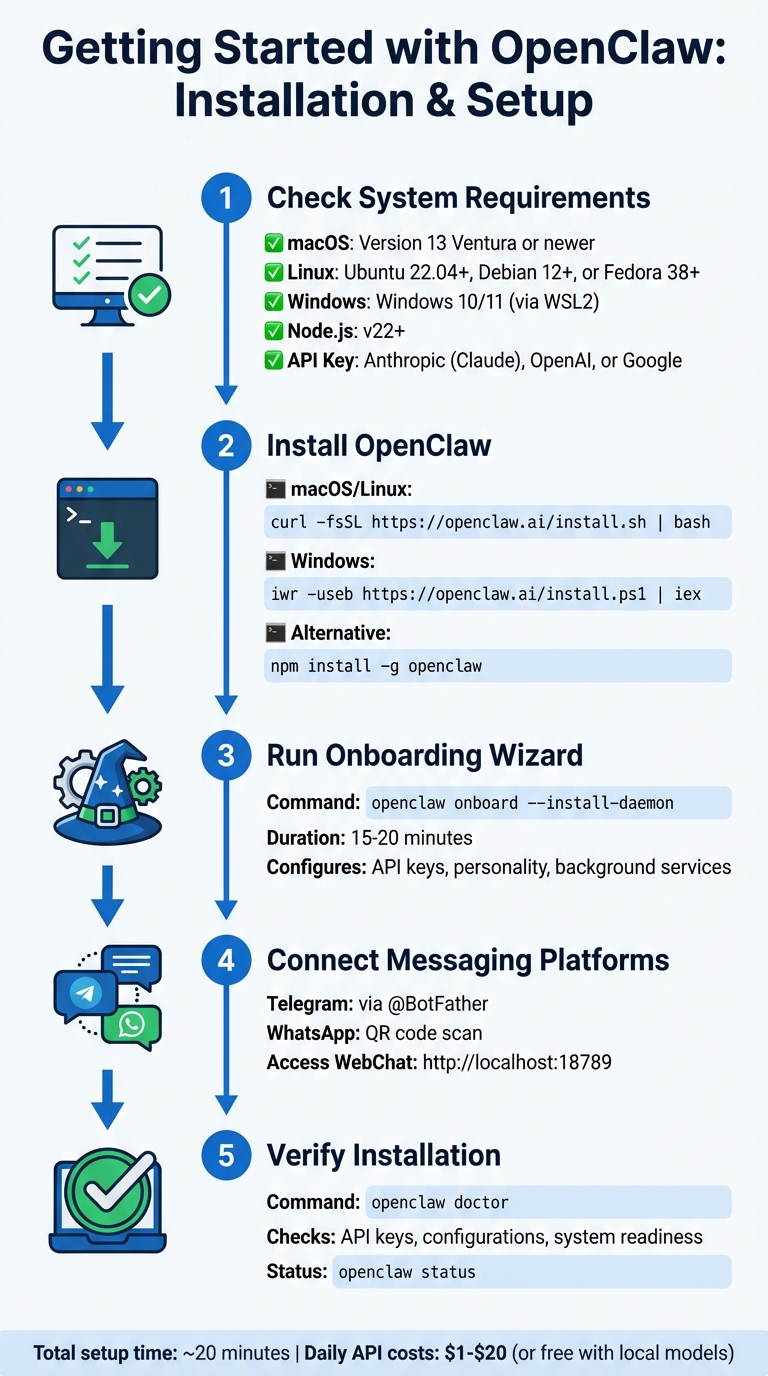
OpenClaw Installation and Setup Guide - 5 Steps to Get Started
System Requirements and Prerequisites
To get started with OpenClaw, you'll need to ensure your system meets the following requirements:
- macOS: Version 13 Ventura or newer
- Linux: Ubuntu 22.04+, Debian 12+, or Fedora 38+
- Windows: Windows 10/11 (recommended to use WSL2)
Additionally, you'll need Node.js v22+, which can be managed easily with nvm. Since OpenClaw doesn't come with an integrated AI model, you'll need an API key from providers like Anthropic (Claude), OpenAI (GPT), or Google (Gemini). Anthropic is the preferred option, so make sure to have your API key ready before starting.
| Requirement | Specification |
|---|---|
| Node.js | Version 22.x or higher |
| macOS | 13 Ventura or later (Recommended) |
| Linux | Ubuntu 22.04+, Debian 12+, Fedora 38+ |
| Windows | Windows 10/11 via WSL2 (Recommended) |
| API Keys | Anthropic (Recommended), OpenAI, or Google |
Step-by-Step Installation Guide
The quickest way to install OpenClaw is by running a simple command. For macOS or Linux, open your terminal and run:
curl -fsSL https://openclaw.ai/install.sh | bash
If you're using Windows PowerShell, use this command instead:
iwr -useb https://openclaw.ai/install.ps1 | iex
Alternatively, you can install OpenClaw globally using npm:
npm install -g openclaw
Once installation is complete, initiate the setup process by running:
openclaw onboard --install-daemon
This command starts a configuration wizard that will guide you through setting up API keys, customizing your assistant's personality, and installing necessary background services. The entire process typically takes around 15–20 minutes.
If you encounter an EACCES error during the npm installation, avoid using sudo. Instead, set up a custom global directory (e.g., ~/.npm-global). For Linux users, ensure the OpenClaw Gateway continues running after logout by enabling user lingering:
sudo loginctl enable-linger $USER
After completing the installation, you're ready to configure your settings and connect messaging channels.
First-Time Configuration
Once OpenClaw is installed, the onboarding wizard simplifies the configuration process. It creates a workspace (default locations: ~/clawd/ or ~/.openclaw/workspace/) to store documents, skills, and memory files.
During setup, the wizard will help you connect messaging platforms like Telegram (via @BotFather) and WhatsApp (via a QR code scan). After completing the setup, verify everything is working by accessing the WebChat interface at:
http://localhost:18789
Finally, run the following command to ensure your configuration is error-free:
openclaw doctor
This command checks for any issues, such as invalid API keys or misconfigurations, ensuring your system is ready to go.
Using OpenClaw for Practical Tasks
Running Your First Task
Start by verifying that the Gateway is active using the command openclaw status in your terminal. Once confirmed, launch the chat interface by running openclaw dashboard, which you can access in your browser at http://127.0.0.1:18789/.
To get started, try a straightforward command like "summarize weekly product metrics" or "organize my Downloads folder by file type." OpenClaw doesn't just chat - it handles tasks, manages files, and coordinates tools. As Noah Albert, AI Specialist at RoboRhythms, puts it:
"OpenClaw coordinates work; it does not magically perform it".
You can also initiate tasks directly from the command line with a simple command like openclaw run "your task here".
Once you've tested a few basic commands, you can move on to automating repetitive tasks. For example, you can schedule recurring actions using cron:
openclaw cron add "0 9 * * *" "Give me a morning briefing"
This command sets up a daily morning briefing at 9:00 AM. It's a good idea to test these scheduled tasks manually at first to catch any issues, like silent failures caused by timeouts or context limits.
If you're using Telegram or WhatsApp and don't see any responses, OpenClaw's security pairing system might be the reason. To resolve this, check pending requests with openclaw pairing list and approve your account using openclaw pairing approve <channel> <code>.
For any unexpected behavior, refer to the troubleshooting tips below.
Troubleshooting Common Issues
Sometimes, OpenClaw might report that a task is completed, but no files appear. This could be due to missing write permissions. If the bot loses context midway through a task, it’s likely because of automatic memory compaction - OpenClaw compresses context silently when it gets too large .
| Error Message / Symptom | Likely Cause | Recommended Fix |
|---|---|---|
command not found: openclaw |
npm global bin directory not in PATH | Add the npm global bin path to your ~/.zshrc or ~/.bashrc file |
Connection refused |
Gateway not running or port conflict | Run openclaw start or check for conflicts with lsof -i :18789 |
API key invalid |
Incorrect or expired API key | Reconfigure with openclaw onboard --reconfigure |
HTTP 429: rate_limit_error |
API usage limits reached | Review your provider's billing or usage limits on their dashboard |
| No response in Telegram/WhatsApp | Security pairing required | Use openclaw pairing list and approve with openclaw pairing approve <channel> <code> |
For advanced debugging, you can monitor activity in real-time using openclaw logs --follow. On Linux systems, if the Gateway stops running after you log out, enable lingering with the command sudo loginctl enable-linger $USER. And if you're unsure about the issue, running openclaw doctor can help diagnose and fix configuration problems automatically.
Maximizing OpenClaw's Potential
Applications for Personal and Professional Use
OpenClaw is a versatile tool that can streamline both personal tasks and professional workflows. On the personal side, it’s great for summarizing your email inbox, drafting replies, managing your calendar, or even tracking habits and expenses through simple text commands. Considering that the average knowledge worker spends 2.5 hours daily on email, automating just 20% of those tasks with OpenClaw can save a significant chunk of time.
Professionally, OpenClaw shines in areas like competitor research, drafting customer responses, and using AI tools for social media managers to automate scheduling. Developers, in particular, benefit from its ability to create GitHub issues from Slack, monitor deployment issues, run database queries on mobile, and review pull requests seamlessly. Its "heartbeat" system, which checks for pending tasks every 30 minutes, ensures that it proactively handles workflows.
For smart home enthusiasts, OpenClaw goes beyond work and productivity. It can manage home automation tasks like controlling lights, adjusting thermostats, or even checking if your garage door is open - all through natural, conversational commands. Plus, it works across multiple messaging platforms, so you can access these controls from virtually anywhere.
Recommended Resources and Tools
To get the most out of OpenClaw, tap into these resources and tools. Start with the OpenClaw GitHub repository at github.com/openclaw/openclaw, where you’ll find source code and community contributions. The official documentation at ClawDocs.org provides setup guides and security tips to ensure a smooth experience. For expanding functionality, check out ClawHub, the official marketplace for modular skills, and the Claw Directory, which features over 400 curated skills sorted by use case.
For those looking to deepen their expertise, LearnOpenClaw.com offers a free, in-depth guide by Carl Vellotti, covering topics like SOUL.md personality customization, sub-agent orchestration, and cron-based automation. Additionally, the RoboRhythms Guide dives into advanced techniques like model splitting and memory management to avoid context loss. However, it’s important to be cautious when installing community-developed skills. A 2026 security audit uncovered 341 malicious skills on ClawHub, so always verify the source before installation.
Conclusion
OpenClaw simplifies task automation for both personal and professional needs. It works directly on your computer, autonomously handling tasks like file management, scheduling, and even learning your daily routines. To get started, install Node.js 22+, run the command openclaw onboard --install-daemon, and link your messaging channels. This setup allows you to automate straightforward tasks, such as receiving weather updates or email summaries, before expanding its access to more complex workflows.
As you explore its features, it's wise to scale permissions gradually. Think of OpenClaw as a coordinator: use "brain" models like Claude Opus for planning and "muscle" models like DeepSeek Coder for execution. This setup helps you balance performance with cost, especially since moderate use can incur API fees ranging from $5 to $20 per day.
With over 3,500 community-built skills available on ClawHub and resources like LearnOpenClaw.com, there's a wealth of support to help you customize your workflows. However, be cautious when adding third-party skills - verify their sources before granting system access.
One of OpenClaw's standout features is its local-first approach, which keeps your data stored on your hardware in plain Markdown files. This gives you full control over your assistant's personality, personal context, and memory. You can inspect and edit these files whenever you like. To start interacting, access the dashboard by running openclaw dashboard.
While there may be a learning curve, the payoff is a highly adaptable assistant tailored to your specific workflow. Experiment with configurations, adjust permissions carefully, and refine the system to meet your needs.
FAQs
Can I use OpenClaw without paying API fees?
Yes, you can run OpenClaw for free by setting it up on your own hardware. However, you'll need a compatible GPU or other suitable hardware to ensure it works properly.
What permissions should I give OpenClaw first?
To get started with OpenClaw, you'll need to grant access to your device and configure your AI models. Begin by navigating to the 'Security' tab in the Web UI. There, click 'Approve' for your device to enable secure interaction. Next, set up your preferred AI provider by providing the required API permissions through the Web UI. Following these steps ensures smooth and secure operation.
How do I safely install skills from ClawHub?
To install skills from ClawHub safely, it's important to follow some key security practices. Start by reviewing the OpenClaw Security Guide to get a clear understanding of potential risks. Make sure your setup meets the necessary requirements, such as having Node.js 22+ and the ClawHub CLI installed.
Before installing a skill, take the time to examine its metadata, version history, and user reviews. This can help you identify any red flags or issues reported by others. For added safety, use sandboxing to restrict the skill's access and be cautious when managing API keys - only share what's absolutely necessary.
Once the skill is installed, test its functionality thoroughly and keep an eye on its activity. Monitoring its behavior ensures it performs as expected without causing any unintended issues.